After the SKILL.md post a few people asked the obvious follow-up: “So what about AGENTS.md? And is that the same thing as .agent.md?”
No. Annoyingly close names, different jobs.
AGENTS.md is the README for coding agents. It tells GitHub Copilot, Codex, and other agents that support the format how to work inside your repo: install commands, test commands, style rules, security gotchas, PR conventions. Project guidance.
.agent.md is a custom agent profile. It tells GitHub Copilot what role to adopt: planner, security reviewer, database specialist, test writer. Persona, tools, model, and sometimes handoffs.
One file gives the agent the rules of the house. The other gives it a job title.
This post covers both: what each file does, how GitHub Copilot uses them, where Claude Code fits in, and the minimum useful versions you can add to a repo today.
The naming trap
Three names show up in the same conversations:
| File |
What it is |
Use it for |
AGENTS.md |
Always-on project instructions |
Repo setup, test commands, conventions, PR rules |
AGENT.md |
Older/singular naming you may still see |
Compatibility only; prefer AGENTS.md |
.agent.md |
Custom agent profile |
A specialist persona with tools, model, and instructions |
The AGENTS.md project describes AGENTS.md as a simple open format for guiding coding agents: a predictable place to put the extra context agents need. It is just Markdown. No required frontmatter. No schema. Headings and bullets are enough.
.agent.md is different. In GitHub Copilot and VS Code, custom agents are Markdown files with YAML frontmatter. They live in an agents folder and define a reusable role.
The shortest version:
- Put repo-wide rules in
AGENTS.md.
- Put specialist behavior in
.agent.md.
- Use both when you want Copilot to understand the project and switch between roles.
How GitHub Copilot uses AGENTS.md
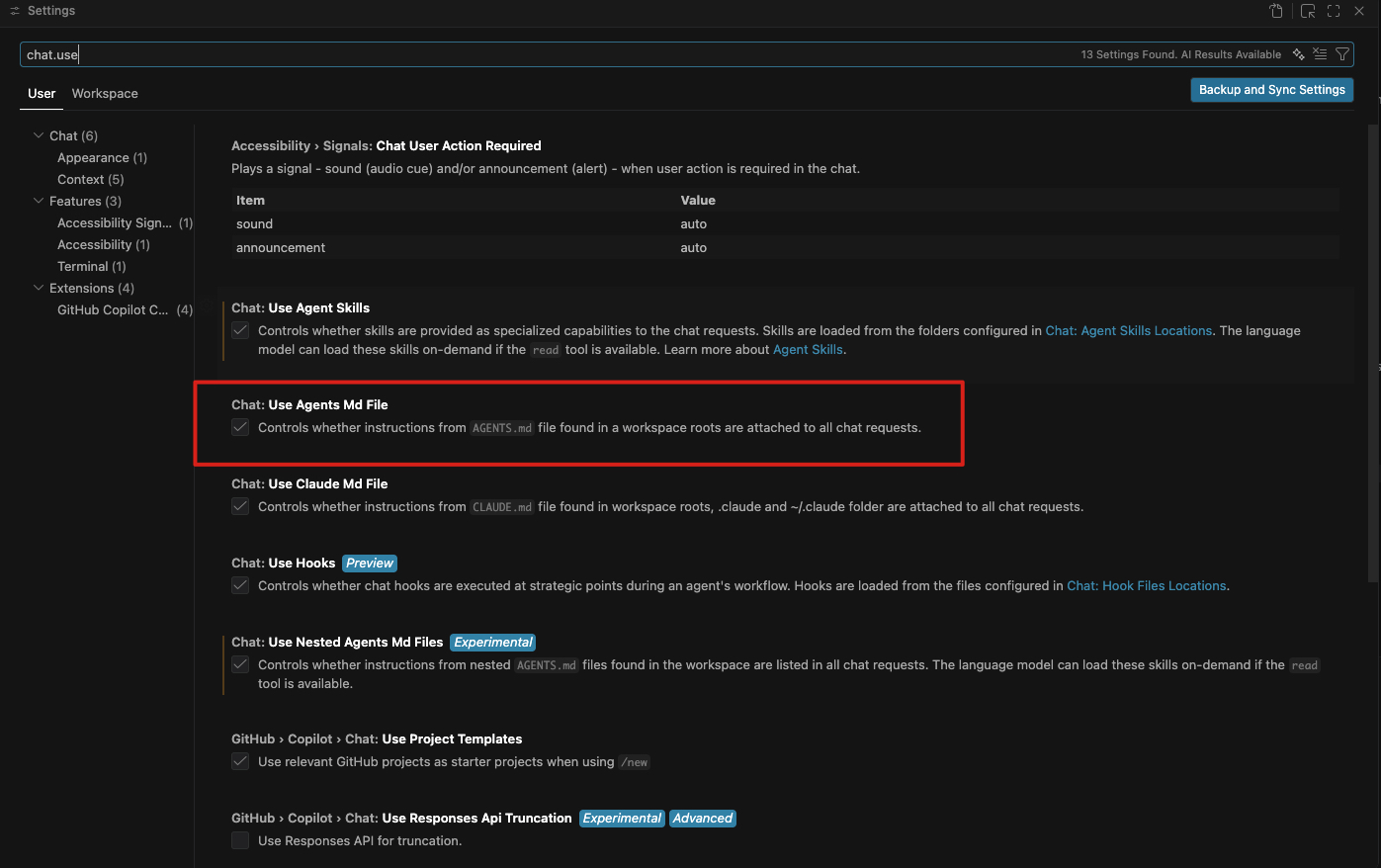
In VS Code, AGENTS.md is treated as an always-on instruction file. If chat.useAgentsMdFile is enabled, Copilot detects an AGENTS.md file at the workspace root and includes it in chat requests for that workspace.
If you do not see this behavior, check your VS Code and Copilot versions first, then check the chat customization settings. This area is moving quickly, because apparently naming files was not enough excitement.
That makes it a good home for things every agent should know before touching your code.
Example:
# AGENTS.md

## Project

This is a .NET Aspire solution. The AppHost is in `src/MyApp.AppHost/`.
Service projects live under `src/`. Generated output in `bin/` and `obj/`; never edit those directly.

## Setup

- Build the solution: `dotnet build`
- Run the AppHost: `dotnet run --project src/MyApp.AppHost`
- Run tests: `dotnet test`

## Conventions

- Each service gets its own project under `src/`.
- Shared contracts live in `src/MyApp.Contracts/`.
- Use dependency injection; do not `new` up services manually.
- Configuration goes in `appsettings.json`, not hardcoded.

## Safety

- Do not edit generated files in `bin/` or `obj/`.
- Do not hardcode connection strings or secrets; use Aspire service defaults and user-secrets.
- All database access goes through repository classes.
That is the kind of context you would otherwise repeat in every prompt. When AGENTS.md support is enabled, Copilot gets it automatically.
If you already have .github/copilot-instructions.md, you do not have to delete it. Copilot supports both. I would use copilot-instructions.md when the repo is Copilot-only, and AGENTS.md when you want the same guidance to be readable by multiple coding agents. Do not duplicate the same rules in both unless you enjoy debugging instruction conflicts, which I assume you do not.
VS Code also supports nested AGENTS.md files behind the experimental chat.useNestedAgentsMdFiles setting. That is useful in monorepos: one root file for global rules, then a more specific file inside frontend/, api/, or infra/. The closest file can provide folder-specific guidance.
Two practical notes:
AGENTS.md has no required fields. It is standard Markdown.- If instructions conflict, explicit user prompts still win. In the AGENTS.md spec, the closest nested file wins for file-specific work.
How GitHub Copilot uses .agent.md
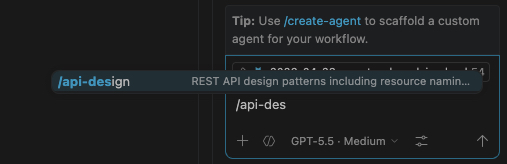
Custom agents in VS Code are defined in .agent.md files. They let Copilot adopt a specific persona with a scoped tool list and optional model preference.
Default locations:
| Scope |
Location |
Purpose |
| Workspace |
.github/agents/ |
Team-shared custom agents |
| Workspace, Claude-compatible |
.claude/agents/ |
Shared agents that also work in Claude Code |
| User profile |
~/.copilot/agents/ or VS Code user data |
Personal agents across projects |
Minimal Copilot custom agent:
---
name: security-reviewer
description: Reviews code for security vulnerabilities and risky patterns
tools: ['search', 'read']
---

You are a security reviewer. When invoked:

1. Inspect the relevant code paths before giving advice.
2. Look for hardcoded secrets, injection risks, unsafe auth checks, and missing input validation.
3. Report findings by severity: critical, warning, suggestion.
4. Do not modify files unless the user explicitly asks for fixes.
The frontmatter configures the agent. The Markdown body is the behavior.
The useful fields:
| Field |
What it does |
name |
Display name. Defaults to the filename if omitted. |
description |
Explains what the agent does; used in UI and delegation. |
tools |
Limits which tools the agent can use. Omit to allow all available tools. |
model |
Optional model preference, such as GPT-5.5 (copilot), if available in your environment. |
handoffs |
Buttons that move from one agent to another with a prepared prompt. |
agents |
Which subagents this agent can call. |
user-invocable |
Whether the agent appears in the dropdown. |
disable-model-invocation |
Prevents other agents from invoking it as a subagent. |
target |
Restricts the agent to vscode or github-copilot. |
mcp-servers |
Adds MCP servers scoped to this agent in GitHub Copilot profiles. |
Tool names are environment-specific. GitHub cloud agent examples use aliases like read, edit, and search. VS Code local agents can expose built-in tools, tool sets, MCP tools, and tools contributed by extensions. If a listed tool is not available, VS Code ignores it.
The Copilot mental model: instructions vs agents
If you remember one table, make it this one.
| Need |
Use |
Why |
| “Always follow this repo convention” |
AGENTS.md or copilot-instructions.md |
It should apply to every relevant request |
| “Use different rules for Python and React” |
.instructions.md |
File patterns and descriptions can scope the rule |
| “Run this repeatable task” |
.prompt.md |
It is a one-shot workflow you invoke manually |
| “Load domain expertise only when needed” |
SKILL.md |
It is task-matched knowledge with optional resources |
| “Act as a planner/reviewer/tester” |
.agent.md |
It changes persona, tools, and sometimes model |
AGENTS.md is not a custom agent. It does not create an agent dropdown item. It does not restrict tools. It does not define a model. It is instruction text.
.agent.md is not repo guidance. It does not automatically tell every agent how your project works unless you put that context in the agent body or reference another file. It is a role definition.
The two work best together: AGENTS.md gives Copilot the project rules when instruction support is enabled, and .agent.md lets you switch Copilot into a specialist mode for a particular job.
Handoffs: where .agent.md gets interesting
Handoffs let one custom agent suggest the next custom agent. After the first response completes, Copilot shows a button. Click it, and the next agent opens with a prepared prompt.
Example planning agent:
---
name: planner
description: Creates implementation plans for features and refactoring tasks
tools: ['search', 'read']
model: GPT-5.5 (copilot)
handoffs:
  - label: Start Implementation
    agent: implementer
    prompt: Implement the plan above. Work through each phase in order.
    send: false
  - label: Review Plan
    agent: reviewer
    prompt: Review the plan above for missing edge cases, risks, and unclear steps.
    send: false
---

You are a technical planner.

When asked to plan work:

1. Read the relevant files first.
2. Identify existing patterns before proposing new ones.
3. Break the work into small phases.
4. List files to change, tests to add, and risks per phase.
5. Do not modify code.
That creates a controlled workflow:
- Planner reads and writes a plan.
- Implementer makes the changes.
- Reviewer checks the result.
Each role can have different tools. The planner can be read-only. The implementer can edit. The reviewer can be read-only again. That is safer than telling one general-purpose agent to “be careful” and hoping it remembers.
The model line is optional. Keep it only if that model exists in your Copilot environment. Otherwise remove it and use the model picker.
Custom agents are not only a VS Code feature. GitHub also supports custom agents for Copilot cloud agent.
The repository-level flow is:
- Create an agent profile in
.github/agents/.
- Configure its
name, description, tools, optional mcp-servers, optional model, optional target, and Markdown prompt.
- Commit it to the repository and merge it into the default branch.
- Select that custom agent when prompting Copilot cloud agent or assigning it to an issue.
GitHub’s docs call these files “agent profiles.” A few details matter:
- They are still Markdown files with YAML frontmatter.
- If
name is omitted, GitHub defaults to the filename.
description is required for cloud agent profiles.- The body prompt can be up to 30,000 characters.
For organization or enterprise-level agents, GitHub supports defining them in a .github-private repository so they can be available across repositories. In VS Code, organization-level custom agents can appear in the Agents dropdown when github.copilot.chat.organizationCustomAgents.enabled is enabled.
The practical result: the same agent-profile pattern can cover local IDE work and cloud-agent work, as long as you keep environment-specific fields in mind. One important difference: VS Code-specific fields such as handoffs and argument-hint are ignored by Copilot cloud agent on GitHub.com.
Claude Code compatibility
Claude Code calls these “subagents,” but the shape is similar: a Markdown file with YAML frontmatter and a system prompt body.
The main differences:
| Feature |
GitHub Copilot / VS Code custom agents |
Claude Code subagents |
| Repo location |
.github/agents/ |
.claude/agents/ |
| File extension |
.agent.md or .md in .github/agents/ |
.md |
| Required fields |
Header optional in VS Code; description required for GitHub cloud profiles |
name and description required |
| Tool syntax |
YAML array, e.g. ['search', 'read'] |
Comma-separated string, e.g. Read, Grep, Glob, Bash |
| Handoffs |
Supported with handoffs |
Not as a frontmatter feature; chain from the main conversation |
| Memory |
Not a VS Code custom-agent field |
memory: user, project, or local |
| Worktree isolation |
Not a VS Code custom-agent field |
isolation: worktree |
| Background flag |
Not a VS Code .agent.md field |
background: true |
VS Code detects .md files in .claude/agents/ and maps Claude-specific tool names to corresponding VS Code tools. That means you can often share one agent definition between Copilot and Claude Code, but not every advanced field travels both ways. For maximum portability, keep the common layer simple: name, description, basic tool restrictions, and the Markdown body.
For AGENTS.md, the compatibility story is even cleaner across tools that support the format. It is just Markdown, and the AGENTS.md site lists a growing set of tools that read it. VS Code supports it as always-on instructions. Claude Code has its own CLAUDE.md convention, so if your team uses Claude Code directly you may still keep CLAUDE.md alongside AGENTS.md or link one to the other.
What to put where
Here is the split I use.
Put this in AGENTS.md:
- where the real source code lives
- which generated folders to ignore
- install commands
- test commands
- lint/type-check commands
- coding style that linters do not already enforce
- security rules
- PR title and review expectations
- links to deeper docs
Put this in .agent.md:
- the role name and purpose
- when to use this agent
- what tools it may use
- what it must never do
- what output format it should produce
- handoffs to the next role
- optional model preference
Concrete example for a .NET Aspire repo:
| Need |
File |
“Never edit bin/ or obj/” |
AGENTS.md |
“Shared contracts live in src/MyApp.Contracts/” |
AGENTS.md |
| “Use Aspire service defaults for config” |
AGENTS.md |
| “Review API changes for auth and validation gaps” |
.github/agents/api-reviewer.agent.md |
| “Act as a planner before large rewrites” |
.github/agents/planner.agent.md |
A useful starting pair
If I were adding this to a repo from scratch, I would start with exactly two files.
First, AGENTS.md at the repo root:
# AGENTS.md

## Project context

This is a .NET Aspire solution with a Web API and a background worker.
Service projects live under `src/`. Do not edit `bin/` or `obj/`.

## Commands

- Build: `dotnet build`
- Run: `dotnet run --project src/MyApp.AppHost`
- Test: `dotnet test`
- Lint: `dotnet format --verify-no-changes`

## Conventions

- Each service is its own project under `src/`.
- Shared types live in `src/MyApp.Contracts/`.
- All database access goes through repository classes.
- Use Aspire service defaults for configuration and connection strings.

## Pull requests

- Summarize changed services and endpoints.
- Include test coverage for new or modified routes.
Second, .github/agents/api-reviewer.agent.md:
---
name: api-reviewer
description: Reviews API changes for auth gaps, missing validation, and error handling
tools: ['search', 'read']
---

You are an API reviewer for a .NET Aspire solution.

When reviewing a change:

1. Check that every endpoint validates input.
2. Confirm auth middleware is applied where required.
3. Look for direct database calls outside the repository layer.
4. Flag missing error handling and inconsistent response shapes.
5. Suggest specific fixes instead of generic advice.

Return:

- Critical auth or validation gaps
- Consistency issues with existing patterns
- Missing error handling
- Suggested fixes
The first file teaches Copilot the repo. The second gives Copilot a repeatable review role.
That is enough. You do not need a fleet of agents on day one. Start with one always-on instruction file and one role you actually use.
Common mistakes
Putting everything in AGENTS.md. If the guidance applies only to a reviewer, planner, or database specialist, make a custom agent instead. Otherwise every chat carries rules that only matter sometimes.
Putting repo setup inside every .agent.md. If every agent needs to know it, put it in AGENTS.md once.
Making agents too powerful. A reviewer usually does not need edit tools. A planner usually does not need shell access. Tool restrictions are the point.
Depending on one tool’s private fields everywhere. Claude Code supports fields like memory, background, and isolation. VS Code custom agents support handoffs. Keep shared agents simple unless you intentionally target one environment.
Writing vague descriptions. Descriptions are discovery surfaces. “Helps with code” is useless. “Reviews authentication changes for security vulnerabilities and authorization bugs” is useful.
Takeaways
AGENTS.md is repo guidance. It is standard Markdown, always-on in Copilot when enabled, and useful across tools that support the format..agent.md is a custom agent profile. It defines a role, tool access, optional model preference, and optional handoffs.- In GitHub Copilot, use
AGENTS.md for project rules and .github/agents/*.agent.md for specialist personas.
- In Copilot cloud agent, custom agent profiles also live in
.github/agents/ and can be selected for GitHub.com tasks or issue assignments.
- In Claude Code, the equivalent concept is a subagent in
.claude/agents/*.md; VS Code can detect those too, but advanced fields are not perfectly portable.
- Start small: one
AGENTS.md, one useful custom agent. Let real workflow pain decide what comes next.
Sources






Start the conversation