Current availability (June 2026): The GitHub Copilot app is still in technical preview, but access is now open to all existing paid Copilot plans (Pro, Pro+, Max, Business, Enterprise) with no waitlist. Copilot Free and new subscribers are opening soon.
If you are on Pro, Pro+, Max, Business, or Enterprise, you can install the GitHub Copilot app today. No waitlist.
VS Code has the same directional move: an “Open in Agents” button in the title bar. Not another sidebar tab. A separate window built for managing agent sessions instead of writing code.
GitHub and VS Code reached the same conclusion at roughly the same time: chat beside your editor was a starting point, not the final surface for agent-first work.
Quick answer
If your question is “GitHub Copilot App vs VS Code Agents Window: which should I use?” here is the short version:
- Use GitHub Copilot App when work starts from GitHub issues/PRs and you want Agent Merge to push work over the finish line.
- Use VS Code Agents Window when you still write code in VS Code and want agent sessions isolated from your editor flow.
- Stay in the main VS Code editor window for day-to-day code-first development where AI is assisting, not leading.
My short personal version: the GitHub Copilot App is the most fun I have had with a Copilot surface in a while. It feels opinionated in the right way. You give it a piece of work, watch the session unfold, review the result, and keep moving.
How we got here
Three milestones shaped how agent-first development ended up needing its own surface.
March 2025. VS Code v1.99 shipped agent mode to stable. It joined Ask and Edit in the chat panel, three tabs in a sidebar. Agent mode could read files, run terminal commands, and call MCP tools. The surface still said “assistant,” but the capability was already pointing past that.
May 2025. VS Code v1.101 added tool sets and custom chat modes. The GitHub Pull Requests extension added Copilot coding agent integration: you could assign an issue to Copilot from inside VS Code and watch it work on a cloud-hosted branch.
May 2026. Two things shipped in the same month. GitHub released the Copilot App (technical preview), a standalone native desktop app built on the Copilot CLI. Microsoft added the Agents Window, a dedicated VS Code window mode for agent-first workflows. Same insight, two surfaces.
The shared logic: a sidebar next to your code is not the right place to manage work you are not doing yourself.
GitHub Copilot App
The GitHub Copilot App is a native desktop application for macOS, Windows, and Linux. It is not a VS Code extension. It is distributed at github.com/github/app, currently in technical preview, and shipping frequent updates (currently in the v0.2.x line).
That repository is the public home for releases, issues, discussions, and the changelog. The application source lives elsewhere. You still need Git installed locally, plus an active Copilot subscription.
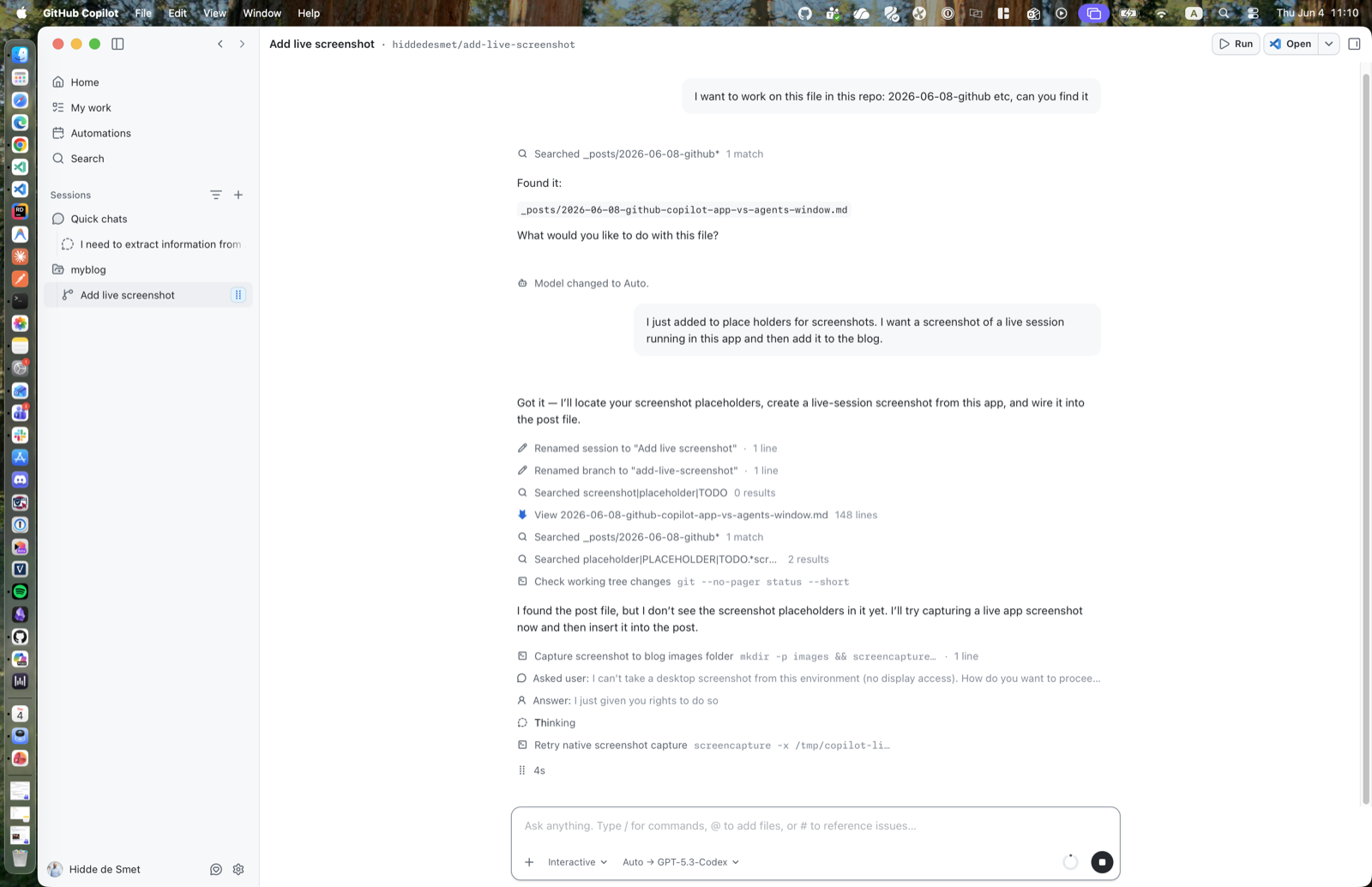 Live GitHub Copilot App session in progress.
Availability (as of June 2026): Copilot Pro, Pro+, Max, Business, and Enterprise users can download and use the app now, with no waitlist. Copilot Free users and new subscribers are opening soon. For Business and Enterprise, org admins must enable preview features and Copilot CLI.
The app organizes work around three ideas.
Start from GitHub context
Sessions launch from GitHub artifacts: an issue, a pull request, a saved prompt, or a previous session. The app shows a My work view for browsing and filtering issues and pull requests, checking CI status, and leaving reviews across your repositories. There is also repository search built into the app.
When a session starts from an issue, the agent already has the issue body, repo state, branch, and CI history. You are not assembling context manually. You are navigating it.
Focused sessions
Code-changing sessions usually run in an isolated workspace with its own branch, worktree, file state, and conversation history. The app also supports branch or folder-backed workspaces when that fits the project better, and GitHub documents cloud sandboxes as a public preview option for app sessions. Pause at end of day, resume the next morning. Run three sessions across different repositories at the same time.
This matters because long agent tasks compete with your working environment inside an IDE. You edit one file, the agent edits another, and you are context-switching in both directions. Focused sessions remove that. The agent has its own space; you have yours.
Not every conversation needs that machinery. Quick chats let you ask questions or brainstorm without creating a branch or worktree.
Steer, validate, ship
The app includes an integrated terminal and browser scoped to each session. You review plan, changes, comments, and CI before merging.
Agent Merge is the key capability. It is not just a merge button with a sparkle icon. When you enable it on a pull request, the workspace’s Copilot session reads the pull request, watches the review and CI state, fixes what is blocking the PR, and merges as soon as GitHub allows it.
That last clause matters. Agent Merge does not bypass branch protection, required checks, or review rules. It sits in the boring gap between “the code is basically done” and “the PR is actually merged.” If a reviewer leaves a comment, the agent can pick it up. If CI fails, the agent can investigate and push a fix. If checks are still pending, current releases re-check CI and pull request status every 10 minutes instead of leaving the task stranded in a wait state.
This is where a surprising amount of agent work dies today. The agent finishes the implementation, a reviewer asks for clearer error handling on line 42, one test flakes, or a required check takes 18 minutes. Nothing is conceptually hard anymore, but the task returns to a human queue. Someone has to notice it, reopen context, decide whether the agent should continue, and nudge it forward.
Agent Merge keeps that loop attached to the original session. It runs in the background, survives app restarts, and turns itself off once the pull request is merged. That sounds small until you have five agent-created PRs waiting on small comments and CI tails. Then it is the difference between “I delegated this” and “I created five new things to babysit.”
Canvases handle the other half of the review problem: output that is hard to give feedback on when it lives only in the chat stream. GitHub describes them as custom, agent-driven artifacts and interfaces where people and agents collaborate. In practice, that means the agent can put a plan, spec, document, chart, or preview into its own working surface instead of burying it between tool calls and status messages.
That difference is bigger than it sounds. A technical spec in chat is something you react to. A spec in a canvas is something you edit. You can select text, use the markdown toolbar, work with tables, copy the full document, and leave comments on plan text. The artifact becomes part of the session, not a blob of assistant output you have to copy into another editor before it is useful.
For agent workflows, this changes the feedback loop. Instead of writing “in paragraph three, change the rollout section and make the table clearer,” you can mark up the document where the problem is. The agent keeps the session context, sees the artifact, and can revise from there. The conversation stays as the control thread; the canvas becomes the shared workbench.
Charts make the point even more clearly. The app changelog calls out chart canvases updating live when the agent edits the backing artifact. That is the right model for generated analysis: you do not want a static screenshot of a chart trapped in chat. You want the generated artifact visible while the agent changes the data or the code behind it.
Browser previews use the same idea. The app can open browser tabs inside the session, and the agent can interact with the integrated browser preview: navigate pages, read content, take screenshots, click, and type. Canvas and browser tabs can also be split side by side, so you can review a generated document, a running UI, or a chart without leaving the session. This is where the app starts to feel less like a terminal wrapper and more like a workspace for agent-produced work.
Session controls are now deeper
Beyond the core flow, current docs show three session modes (Interactive, Plan, Autopilot), per-session model and reasoning controls, and optional cloud sandboxes for isolated remote runs. GitHub’s documentation now shows first-class customization support: MCP servers, skills, extensions, and plugins.
There are four details worth not missing:
- Automations save recurring agent tasks and run them on a schedule or on demand.
- Repository configuration can come from
.github/github-app.yml, but the app asks you to review and trust that file before applying customizations such as scripts, system-prompt changes, or automation settings.
- Cloud sandboxes have separate usage billing. Local sandboxing is included with the Copilot seat, but cloud sandboxes are billed by compute time, memory, and snapshot storage.
- Public-code matching caveat. GitHub’s docs say the Copilot app may generate code that is a match or near match of public code, even if the usual “Suggestions matching public code” policy is set to block.
VS Code Agents Window
The Agents Window is a dedicated window mode in VS Code. Not a new product. Not a separate download. Open it with code --agents, the “Open in Agents” button in the VS Code title bar, or at insiders.vscode.dev/agents in any browser. It is rolling out across VS Code builds; if you do not see it yet, Insiders has it first.
The framing VS Code uses is deliberate: the editor window is code-first, the Agents Window is agent-first. They share sessions, settings, and keybindings. Switching between them is switching windows, not switching tools.
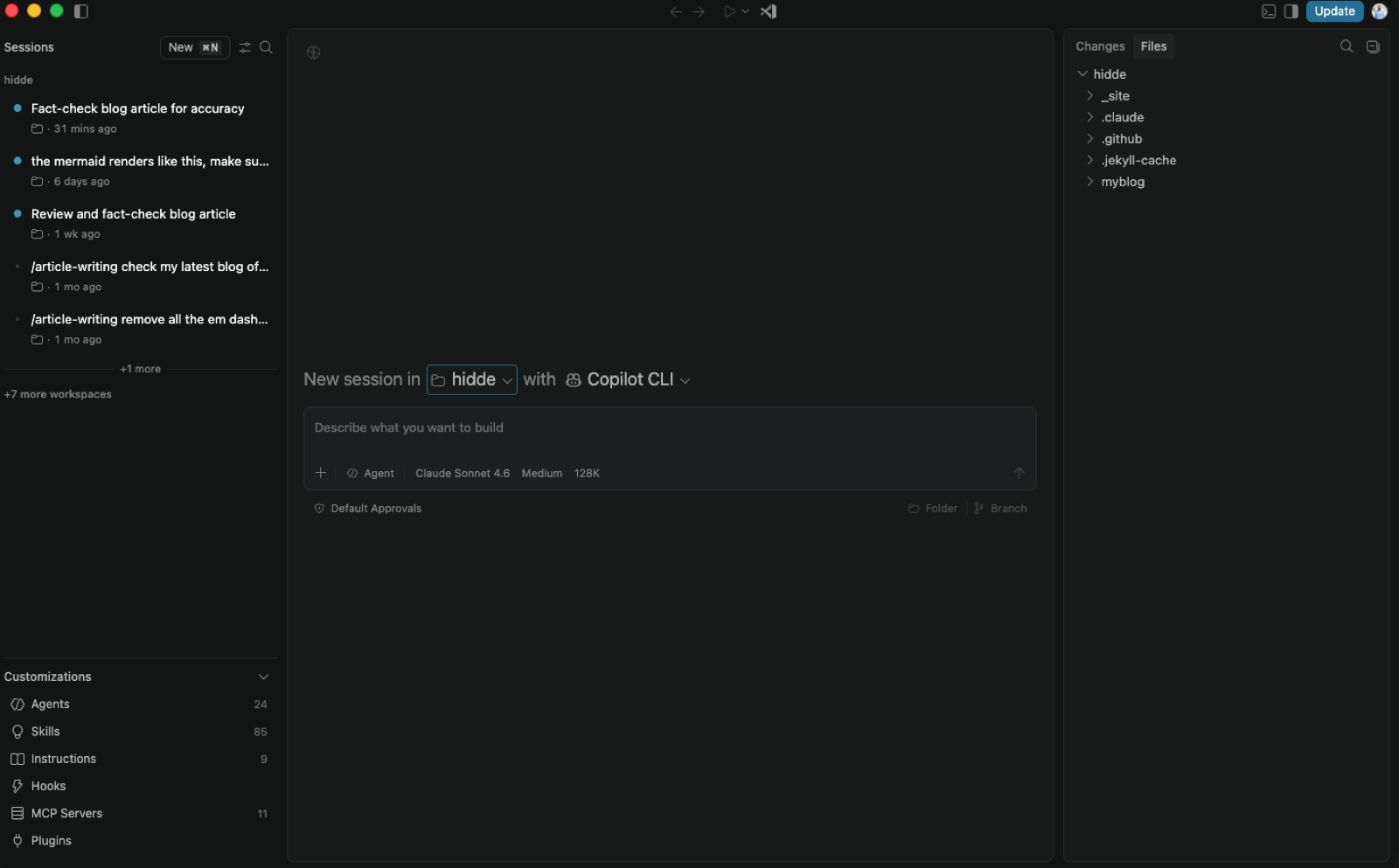
Sessions across workspaces
The Agents Window shows all your active agent sessions in one list, regardless of which workspace they belong to. Copilot CLI sessions, Copilot Cloud sessions, Claude agent sessions, all visible together, grouped by workspace. Pause and resume works the same way it does in the GitHub Copilot App.
Worktree isolation
Each session gets its own git worktree. The agent’s changes stay isolated until you decide what to do with them: commit, merge, or discard. Folder isolation is available as an alternative if worktrees do not fit the project setup.
Nothing the agent does inside a session touches your working tree until you bring it through.
Changes panel
The Changes panel shows the full diff for a session. Inside the diff view, you can add inline feedback directly on specific lines without opening the chat. Write a comment on the change, and the agent picks it up in the next step. That is a more natural review gesture than switching to chat and re-describing what you noticed.
Customizations panel
One panel manages everything that configures agent behavior: skills, instruction files, hooks, MCP servers, and plugins. If you have built a customization stack with SKILL.md files, AGENTS.md and .agent.md configuration, and the five-file setup that ties them together, the Customizations panel is the management UI for all of it. No digging through directory trees.
Browser access and sub-sessions
insiders.vscode.dev/agents gives you the full Agents Window from any browser on any device, but it requires a dev tunnel running on the remote machine first. Start one with code tunnel (stable) or code-insiders tunnel (Insiders), authenticate once with GitHub or Microsoft, and any device with a browser can connect. A session running on your desktop is then accessible from a tablet, a different machine, or a coffee shop without losing state.
Sessions also support sub-sessions: parallel agent tasks scoped within the same workspace, coordinated from the same Agents Window.
The comparison
Both surfaces do the same fundamental thing: move agent sessions out of the editor and into a dedicated context with isolation, state persistence, and a management interface. The differences come from what each one brings to that context.
| |
GitHub Copilot App |
VS Code Agents Window |
| Surface type |
Standalone desktop app |
VS Code window mode |
| Built on |
Copilot CLI |
VS Code + extensions |
| Current status |
Technical preview (v0.2.x line) |
Preview feature available in current VS Code builds |
| Availability |
Pro, Pro+, Max, Business, Enterprise (Free/new subscribers opening soon) |
Any VS Code user signed into Copilot (including Free plan limits) |
| Requires VS Code |
No |
Yes |
| Session isolation |
Worktree/branch/folder workspace, plus cloud sandbox option |
Git worktree per session |
| GitHub integration |
Native (issues, PRs, inbox, CI status) |
Via GitHub Pull Requests extension |
| Agent Merge |
Yes |
No |
| Automations |
Scheduled or on-demand agent tasks |
Session/sub-session focused |
| Integrated browser preview |
Yes, including browser-agent tools |
Yes, through VS Code/browser tooling |
| Browser-hosted access |
Not documented as a browser-hosted app |
Yes, via insiders.vscode.dev/agents |
| Code editing |
No |
Full VS Code capabilities |
| Customizations UI |
Yes (MCP, skills, extensions, plugins) |
Yes (agents, skills, instructions, hooks, MCP, plugins) |
| Multiple repos simultaneously |
Yes |
Grouped by workspace |
When to use the GitHub Copilot App
You are directing work on multiple GitHub repositories and you are not writing most of the code yourself. Tasks start from issues or pull requests that already exist on GitHub. You want Agent Merge to handle the close: addressing review comments, fixing CI, merging when conditions are met. You want scheduled agent tasks for recurring maintenance or triage. You do not need VS Code running.
When to use the VS Code Agents Window
You run agents on local projects. You still write some code yourself. Your customization stack is built out and you want to manage it from one panel. Your sessions are scoped to repositories you actively work in.
When to stay in the main editor window
You are writing code with AI assistance, not delegating tasks. Agent mode in the regular VS Code editor window is still the right surface for most day-to-day development work. These two new surfaces handle the subset where you are more manager than author.
My take
The chat panel served its moment. It put the agent adjacent to your code because that was the only available surface in 2023. These two releases fit a different workflow: you direct a session instead of typing every change yourself. That needs isolation, statefulness, and a management surface that does not compete with your own editing.
The GitHub Copilot App fits GitHub-native workflows. It is also just really enjoyable to use. That matters more than it sounds. Tools for managing agent work can easily feel like dashboards: useful, but heavy. This app feels closer to a control room. Start a session, watch it plan, inspect the files, open the browser preview, nudge it, and let it continue. It makes agent work feel less like babysitting a terminal and more like directing a small workstream.
Agent Merge is the specific capability worth watching. A lot of agent sessions stall on a review comment or a small CI failure. Bringing that closing step inside the session means fewer tasks that need a human to pick them back up.
The VS Code Agents Window has the stronger story for daily development. It requires nothing new from your existing setup. The Customizations panel gives a management surface to the configuration work many VS Code users have already done. Browser access via dev tunnel is a quiet feature with a practical use: a long-running session stays accessible from anywhere without re-establishing context.
The two are not competing. The GitHub Copilot App is for orchestrating work you are mostly not writing. The Agents Window is for developers who still write code but want agent work fully separated from it. Both treat agent sessions as units of work with state, not conversations that disappear when you close a window.
Get started
Try code --agents today. It is available as a preview feature in current VS Code builds. No additional extension required. Open a session and look at the Customizations panel. If you have instruction files or MCP servers configured, they are already listed there.
Install the GitHub Copilot App directly. If you are on Pro, Pro+, Max, Business, or Enterprise, download it from github.com/github/app. If you are on Copilot Free or no Copilot plan, access is opening soon.
Make sure Git is installed first. For Business and Enterprise users, confirm that preview features and Copilot CLI are enabled by your organization or enterprise.
Check your credits before you scale up. Both surfaces consume AI Credits under GitHub’s usage-based billing. The per-model rates and full cost breakdown are here.
If you use cloud sandboxes with the GitHub Copilot App, also check the separate sandbox meters: compute time, memory, and snapshot storage.





:%20Which%20one%20should%20you%20use?)
Start the conversation